
Add New Team Members
Easily add members to your team
Learn how to add new team members in MX Merchant, set their roles, permissions, and access settings, and invite them to join your business account.
Overview
Businesses are constantly adding new workers into their team. In this guide, you'll learn to add them to your team, enabling them to work with MX Merchant™.
Prerequisites
- You must have an Admin or Sub-Admin role.
Adding a New Team Member
- Go to Settings (on the left).
- Go to Team. This will take you to your Team management panel (learn more here).
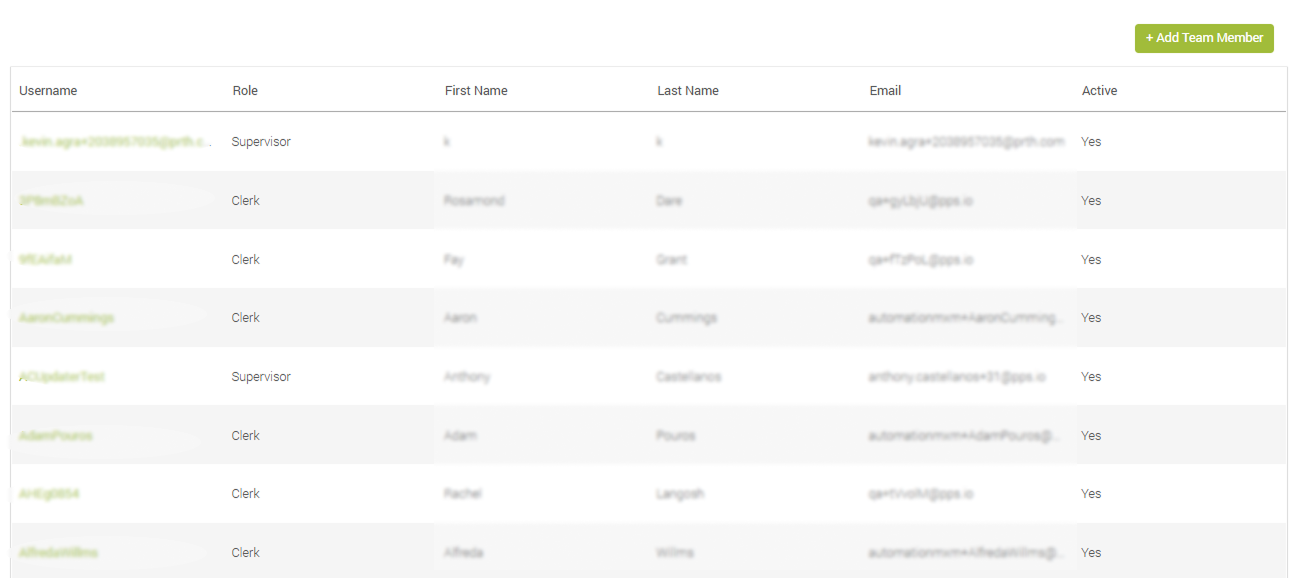
- Press + Add Team Member on the top right-hand corner. You'll see the following form.
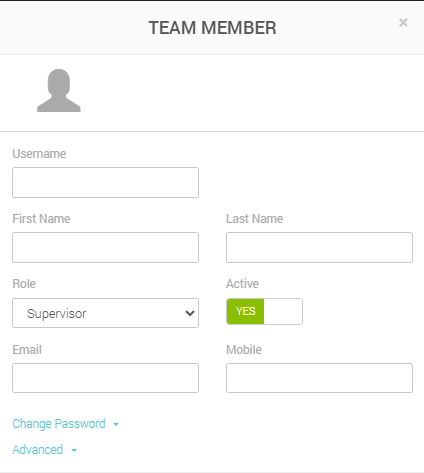

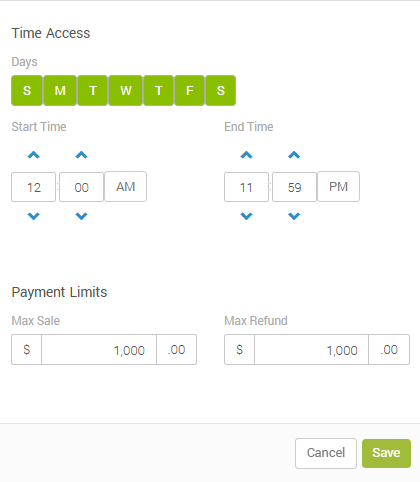
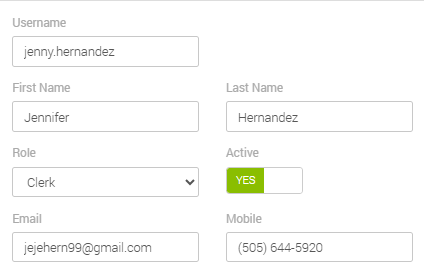
- Fill in the form with the new team member's information.
Note:
- The Change Password and Advanced are hidden by default. You may display and edit them if necessary.
- Despite its name, Change Password can also be used to create a new member's first password: Just type in the new password into both slots.
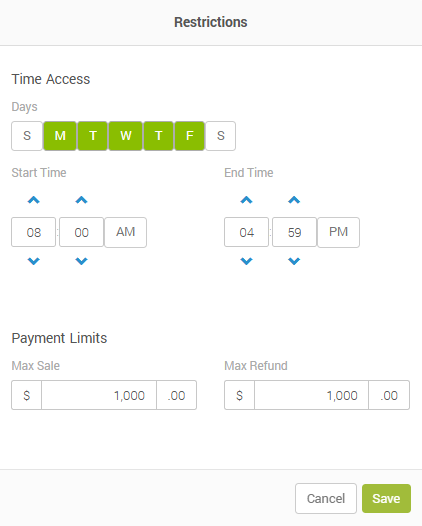
- The Advanced section will allow you to adjust your new team member's schedule, and thus their window of access to MX Merchant™. Furthermore, you can state how much they can receive in payments and give out in refunds. You can learn more specific details in the Team guide.
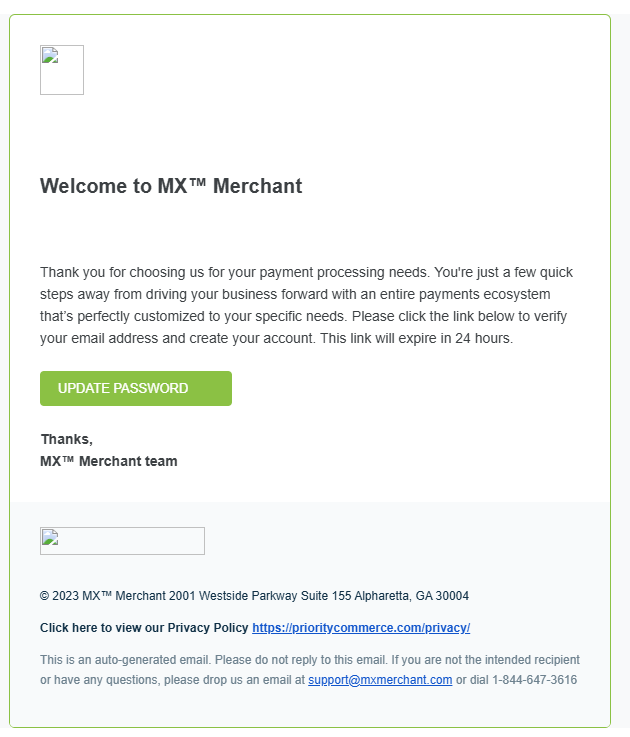
- Save. For the final step, your team member will receive an email to confirm their membership and change their password.
Updated 20 days ago