
Close Batches
Close batches manually or automatically
Learn how to manage payment batches in MX Merchant, including setting up automatic batch closing or manually closing unbatched payments.
Overview
Prerequisites
- You must have an Admin, Sub-Admin or Supervisor role.
Unbatched Payments
Whenever a new payment is generated, it shows up in your Payments panel as unbatched, that is, not categorized into any batches. These payments are marked by a green symbol to the left.
Creating and Closing Batches
Automatic Closing
MX Merchant's Auto-Close feature allows you to automate closing batches. To use it:
- Go to Settings.
- Go to Payments settings.
- In the Batch Settings section, check the Auto-Close checkbox. Once checked, it will automatically close your open batches at a specified time of the day every day.
- Adjust the closing time by typing it or clicking on the clock button, which will display a dropdown menu from which you can set up the time.
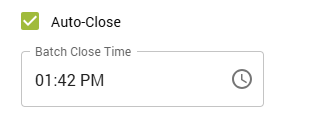
If checked, it will automatically close your open batches at a specified time of the day every day. It is checked by default, and you may adjust the closing time by typing it or clicking on the "Clock" button, which will display a dropdown menu from which you can set up the time.
Note:
If you uncheck this option, you will be required to close batches manually. Be mindful of this, since unclosed batches may result in increased processing expenses, declined payments, and chargebacks. You can learn more in the Manual Closing section.
Manual Closing
If you have decided that you would rather close batches manually:
- Go to Settings.
- Go to Payments settings.
- In the Batch Settings section, uncheck the Auto-Close checkbox.
- Go to Batches.
- If there are any unbatched payments, click Close Batch to the right of the page.
- Confirm that you seek to close the batch. This will finally close the batch.

Updated 20 days ago