
Set Up Notifications
Stay informed with MX Merchant notifications
Learn how to set up and manage notifications in MX Merchant so you receive real-time alerts about payments, deposits, chargebacks, and important account events through your preferred channels.
Overview
MX Merchant's notifications help you stay informed about important business activity—such as payments, deposits, chargebacks, and account events—without needing to constantly check reports. This guide explains how to set up notifications so you receive alerts through your preferred delivery methods.
Prerequisites
- You must have a Supervisor, Admin, or Sub-Admin role.
Accessing Notification Settings
To see your notifications page:
- Navigate to Settings.
- Select Notifications.
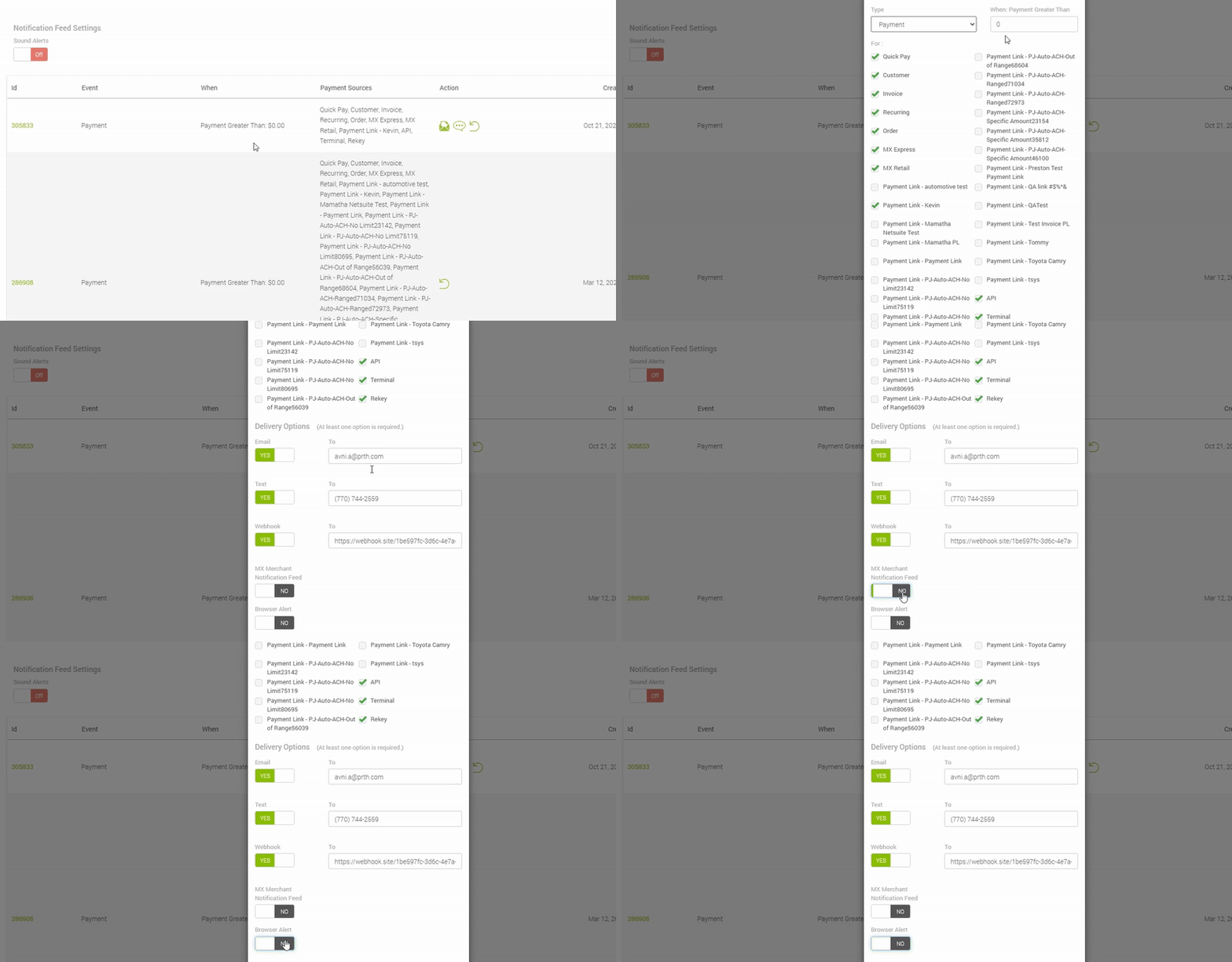
- You will see a list of existing notifications, if any, along with details such as the event type, delivery method, and creation date.
Adding a Notification
In order to create a new notification:
-
On the Notifications settings page, click + Add Notification in the upper-right corner.
-
In the pop-up window, choose the Event you want to be notified about. Each event represents a specific trigger, such as a payment, deposit, or decline. Common notification types include:
- Payments
- Deposits
- Chargebacks
- Declines
- PCI Expiration
-
Depending on the notification type, you may need to configure additional conditions:
- Enter a minimum dollar amount (for payments, deposits, refunds, or chargebacks).
- Select one or more sources (such as Quick Pay, Invoice, MX Retail, or payment links).
- Define time-based conditions, such as:
- Days prior to PCI expiration
- Number of days a batch remains open
-
Select at least one Delivery Option:
- Text (SMS)
- Webhook
- MX Merchant Notification Feed
- Browser Alert
-
Enter the required contact information for each selected option.
-
Save to activate the notification.
Enabling or Disabling Notifications
To enable or disabe an existing notification:
- Locate the notification in the notifications list.
- Use the toggle to enable or disable the notification as needed.
- Even if the notification is enabled, you may enable or disable browser alerts.
Sound Alerts
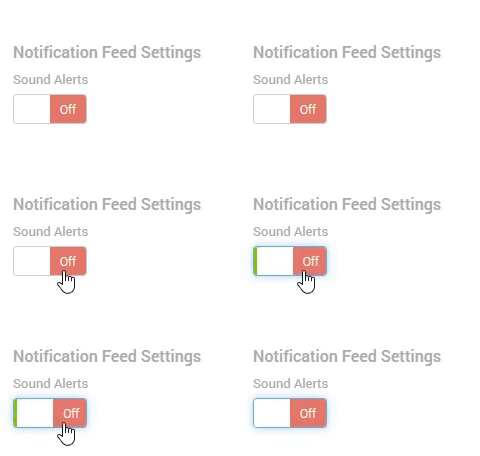
- Use the Sound Alerts toggle to control whether notifications play a sound.
- Set it to On to enable sound alerts or Off to mute them.
Updated 20 days ago