
Recurring
Manage Recurring Payment Contracts
Overview
Depending on the goods and services you provide, you may need to create recurring contracts, which will help you charge your customers at a consistent frequency.
Prerequisites
- For the purpose of requesting agreement from the customer, they must have an email address registered.
Viewing your Recurring Contracts
After clicking Recurring on the MX Merchant left-hand panel, you'll see the recurring contracts you have created, with the following columns:
- Contract # - Automatically assigned contract identification number.
- Customer - Client with whom the contract was signed.
- Frequency - Frequency with which the contract charges the customer: Once, Weekly, Monthly or Yearly.
- Every - Description of frequency
- On - Time at which the payment is charged.
- Plan - Recurring payment plan contracted by the customer. You can learn more about these in your Invoice settings.
- Amount - Amount charges in each installment.
- Currency - Currency handled in the contract.
- Status - Current state of the contract: Active or Inactive.
- Last Billed Date - Date when billing has last carried out.
- Next Bill Date - Date when the next billing will be carried out.
Note:
- The meaning of the Every field will change according to what is in the Frequency field:
- If the frequency is Weekly, it shows the number of weeks between each payment (for example, if it is "2", it means "every 2 weeks").
- If the frequency is Monthly, it shows the number of months between each payment (for example, if it is "3", it means "every 3 months").
- If the frequency is Yearly, it shows the month in which the payment is charged each year (for example, if it is "March", it means "in March of every year").
- The meaning of the On field will change according to what is in the Frequency field:
- If the frequency is Weekly, it will show the day of the week (for example, if it is "M", it means "on Mondays")
- If the frequency is Monthly, it will show either a day (for example "14", meaning "on the 14th of each month") or an ordinal plus a day of the week (for example "First Monday" meaning "On the first Monday of each month")
- If the frequency is Yearly, it will show either a full date (for example, "January 8") or a month accompanied by an ordinal and a day of the week (for example, "March last Saturday" meaning "On the last Saturday of March of every year").
Managing Recurring Contracts
Creating Recurring Contracts
In order to create a new recurring contract:
-
In the Recurring section, click + Add Contract, on the upper right-hand corner.
-
You will see the following sections to fill in. Read below or click on each one to learn more:
After completing all of them, remember to Save & Start.
Contract
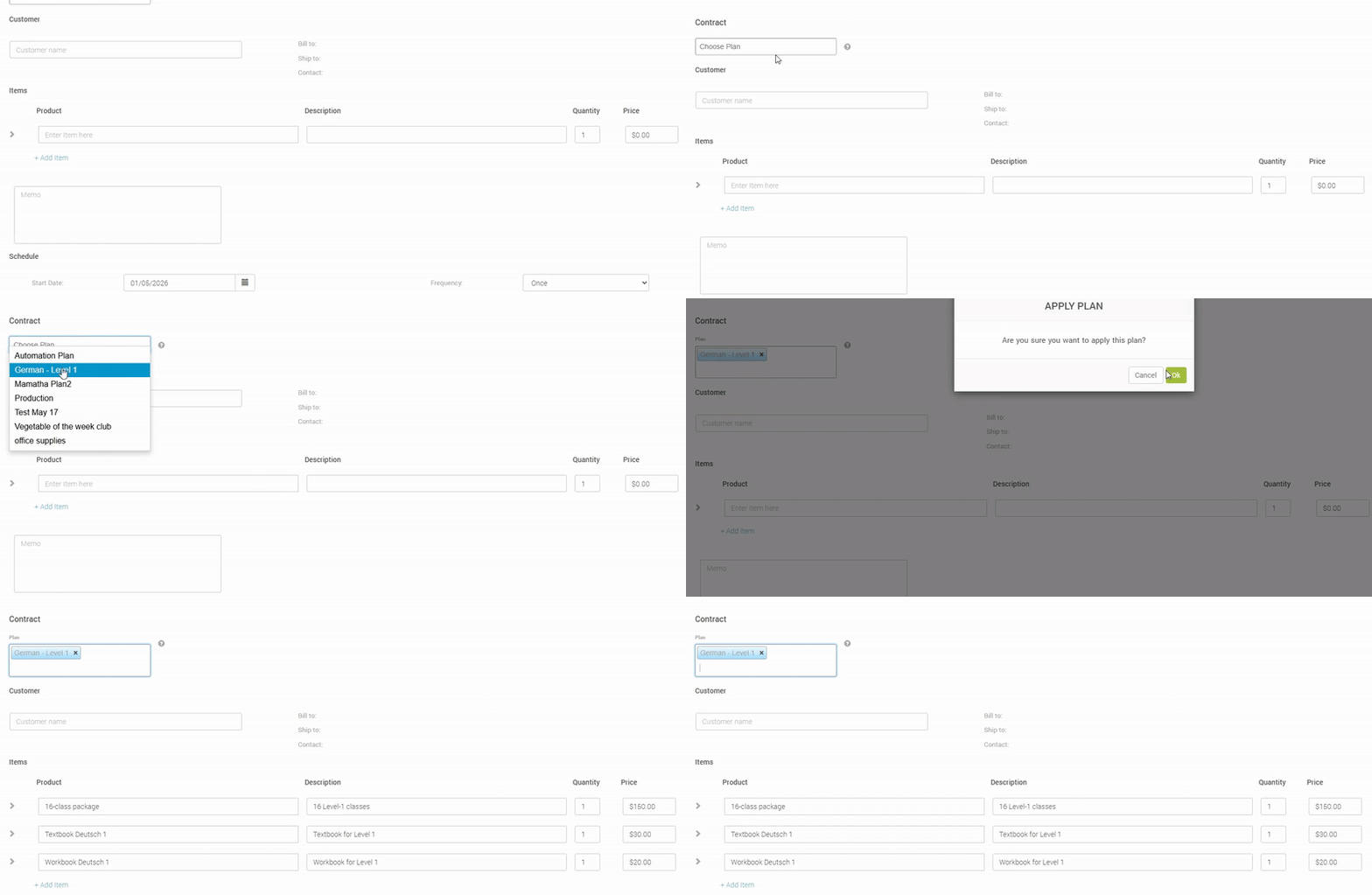
Here, you may select an existing payment plan, which you can create and modify in your Invoice settings.
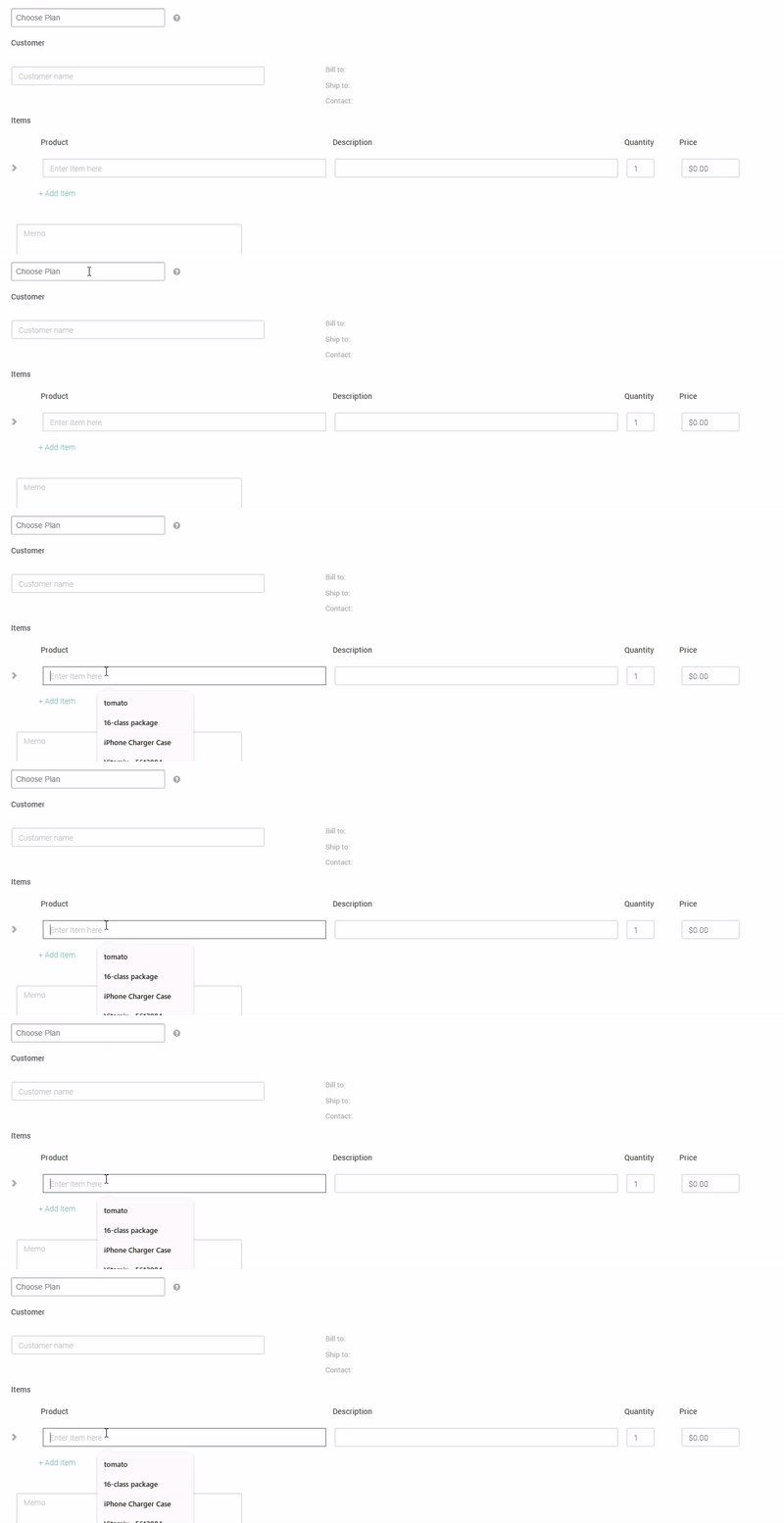
By selecting one, the Items section below will be filled in automatically. However, if none of your existing plans meets your needs, you may fill it in manually.
-
Using an existing payment plan:
-
Filling in manually:
Customer
In this section, you may select an existing customer, or create a new one. You can learn more in Customers.
Items
Here, you may add the products that will be part of the recurring contract. As mentioned above, this area can be filled in automatically by choosing an existing payment plan.
If you still need to add or take away products, for any reason, you can learn how to do it in Invoice settings, in the Plans section.
Schedule
In this section, fill in the following information:
-
Start Date - Date on which the contract will come into effect.
-
Request Customer Agreement - Indicates that a statement of approval from the customer is required: Yes or No.
-
Receipt - Indicates when the receipt sould be sent to the customer: Always Send, Never Send or Send Once.
-
Frequency - Frequency with which billing will be carried out: Once, Weekly, Monthly or Yearly.
-
Every and On - The meaning of these fields will change depending on the type of frequency selected above:
-
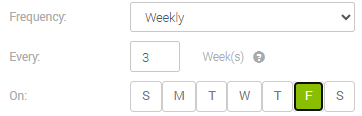
When Weekly is selected:
- Every - Number of weeks between each payment (Example: "3" means "Every 3 weeks").
- On - Day of the week in which the billing is carried out (Example: "F" means "on Fridays").
-
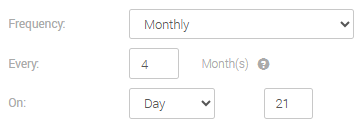
When Monthly is selected:
-
Every - Number of months between each payment (Example: "4" means "every 4 months")
-
On - Here, you may select one of the following options: Day, First, Second, Third, Four or Last.
-
If Day is selected, enter the day of the month in which the billing is carried out (Example: "21" means "on the 21st of the month).
-
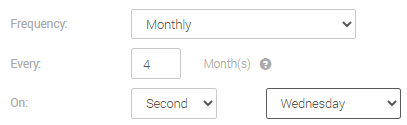
If First, Second, Third, Four or Last is selected, choose a day of the week, Day, Workday or Weekend. For example, if you select Second and Wednesday, it means "on the second Wednesday of the month".
-
-
-
When Yearly is selected:
-
Every - Month in which the payment is charged each year (Example: "May" means "in May each year")
-
On - Here, you may select one of the following options: Day, First, Second, Third, Four or Last.
-
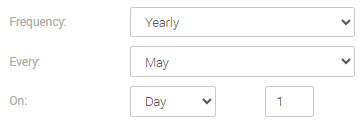
If Day is selected, enter the day of the month in which the billing is carried out (Example: "1" means "on the 1st of the month).
-
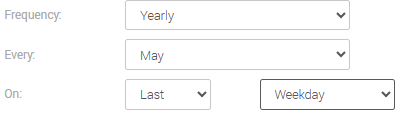
If First, Second, Third, Four or Last is selected, choose a day of the week, Day, Workday or Weekend. For example, if you select Last and Weekday, it means "on the last weekday of the month".
-
-
-
Note:
- The Every and On options are not displayed when the Frequency selected is Once.
- Bill Now - This displays the Collect First Payment Now option, which, if checked, will collect the first payment right away, rather than waiting until later.
Note:
- The Bill Now option is only displayed if both of these conditions are met:
- The Automatically charge option (Payment section) is checked.
- The Request Customer Agreement option is set to No.
- The Bill Now option has further constraints:
- Only the amount set in the contract can be billed with Bill Now.
- Only the payment method (card/account) linked to the contract can be used.
- Since, under the Bill Now option, The first payment is collected immediately, it is only intended for contracts that will start the same day, not a future date.
- Bill Now cannot be used after contract has begun, nor will it appear when editing the contract.
Payment
In this section, you'll need to check one of the following options:
- Automatically charge - If checked, it will bill the customer automatically upon starting the contract.
- Send Invoice - If checked, the invoice will be sent to the customer without billing the customer immediately. It will also show the following options:
- Terms - When they expect the payment to come in: Upon Receipt, Net 15, Net 30, Net 60, Net 90 or None.
- Accept Credit Cards - If checked, the customer will be allowed to pay using a credit card.
- Prorate 1st invoice - If checked, the payment of the first invoice will be adjusted depending on the actual time that the customer uses the service before the second invoice.
Please note:
If the option Accept Credit Cards is checked, the Request Customer Agreement will be set to Yes" automatically. You can still switch it back to No*.
Attachments
In this section, you may attach any files related to the contract, such as printed certificates, contracts, ID documents, and the like.
Modifying recurring contracts
By clicking the number of any contract you may need (written in green), you will find and be able to edit most of the information, with options that mimic those in the Creating recurring contracts section. However, there is one detail:
When the Request Customer Agreement option is enabled, an email is sent to the customer as soon as the contract is created. This email asks them to read and approve the agreement. When you have already received confirmation from them, you'll find the following status underneath.

Updated 20 days ago