
Payments
Managing Your Payment Preferences
Overview
The Payments settings section allows you to tailor your payment processing experience to fit your business needs. You can automate key tasks, control which payment methods are available, and set default options to streamline transactions. Customizing these preferences helps ensure a faster, more efficient checkout process while reducing manual work. Whether you're handling payments in person or remotely, these settings give you the flexibility to optimize workflows and improve accuracy. Be sure to save any changes to keep your settings up to date.
Prerequisites
- To adjust payment settings, the user must have an Admin or Sub-Admin role.
Viewing Your Payment Settings
Upon clicking Payments in the Settings page, you'll see five sections:
Additionally, it will show the Cancel and Save buttons on the upper right-hand corner, which you can use to save or discard any changes made to the settings below.
Modifying Settings
Batch Settings
Auto-Close
This feature allows you to automate closing batches and configure terminal settings.
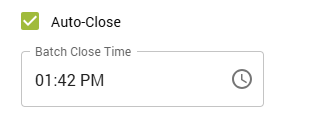
If checked, it will automatically close your open batches at a specified time of the day every day. It is checked by default, and you may adjust the closing time by typing it or clicking on the clock button, which will display a dropdown menu from which you can set up the time.
Note:
If you uncheck this option, you will be required to close batches manually. Me mindful of this, since unclosed batches may result in increased processing expenses, declined payments, and chargebacks.
Terminal Batch
If this option is checked, then all transactions processed through terminal devices within a day will be consolidated and submitted for settlement.
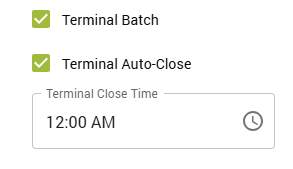
Terminal Auto-Close
This setting allows you to set an auto close time for your terminal(s) separate from your other POS devices with MX™ Merchant.
Note:
This setting can only batch terminals separately if a Device ID transmitted and the source is a terminal.
Accepted Tender Types
This option lets you choose the tender types you would like to accept. Unselected tender types will not be available for MX™ Quick Pay's default settings. You may choose any combination of the following tender types:
- Card
- Cash
- Check
Duplicate Check Payment
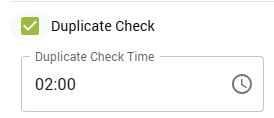
Duplicate Check
When enabled, this option lets you automatically decline duplicate card payments after a certain time. This option is unchecked by default.
Once you enable it, you may adjust the duplicate check time by typing it or clicking on the clock button, which will display a dropdown menu from which you can set up the time.
MX™ Quick Pay Defaults
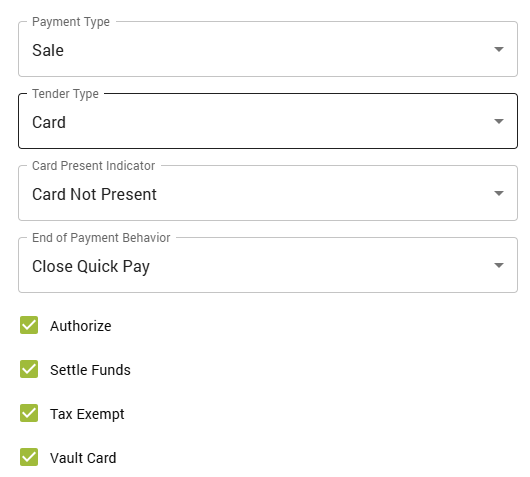
In this section, you can manage the way payments through Quick Pay are managed in your business by default.
- Payment Type: Type of transation being performed by default: Sale or Refund.
- Tender Type: Type of tender used by default: Card, Cash or Check.
- Card Present Indicator: Default card availability setting: Card Not Present, Card Present Keyed, Card Present Swiped or Terminal.
- End of Payment Behavior: Event that follows the end of a transaction: Close Quick Pay or Make Another Payment.
- Authorize: If checked, it will seek authorization for the transaction.
- Settle Funds: If checked, it will allow settlements by default.
- Tax Excempt: If checked, the transaction is tax excempt by default.
- Vault Card: If checked, it will save the card information by default.
MX™ Express
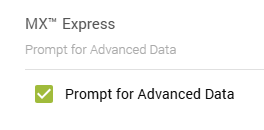
Prompt for Advanced Data
When using the MX Express app (iPhone/iPad) you can use this setting to determine if you want to show the Advance Data. The Advanced Data that shows in the app when this field is turned to yes are as follows:
- Memo/Note
- Customer Name
- Customer Number
- Invoice Number
- Tax Exempt / Tax Amount
Additional Resources
Videos
- Payments: Instruction Video
Click on the image below to watch the video
Updated 20 days ago