
Discounts
Setup for Discounts and Offers for your Business
Learn how to view, create, and manage discounts in MX Merchant, including setting discount amounts, levels, automation, and validity periods.
Overview
This guide explains how to view and manage discounts in MX Merchant, including how discount fields work and how to create, edit, or delete discounts. It walks you through setting discount amounts, applying them to items or whole orders, configuring automatic or approved discounts, and setting date ranges. The guide also highlights conditional options that appear based on your selections.
Prerequisites
- To adjust discount settings, the user must have an Admin or Sub-Admin role.
Viewing Your Discounts
Upon clicking Discounts in the Settings page, you'll see a table with the following columns:
- Discount Name – The label used to identify the discount.
- Discount Amount – The value of the discount, either a percentage or a fixed amount.
- Level – Determines where the discount applies (entire order, specific item, collection, or tag).
- Approval – Indicates whether manager approval is required to apply the discount.
- Automatic – Specifies if the discount is applied automatically based on predefined rules.
- Start Date – The date when the discount becomes active.
- End Date – The date when the discount expires. If it does not expire at all, you'll see the word Never in this field.
- Barcode – The code that applies the discount when scanned.
Managing Taxes
Creating a New Tax
- Click + Add Discount. An overlay window will pop up.
- Fill in the following information:
- Discount Name - Give a name to identify the new discount.
- Discount Amount - This field consists of a number, a sign (either percentage or dollar sign) and the level that the discount will be applied to. For example:
"10% discount off the entire order"

"$5.00 discount off the chosen items (see Item(s)/Collection(s)/Tag(s) below)".

- Item(s)/Collection(s)/Tag(s) - If any option other than Entire Order was selected in Discount Amount, look up and select the items, collections or tags that the discount will be applied to.
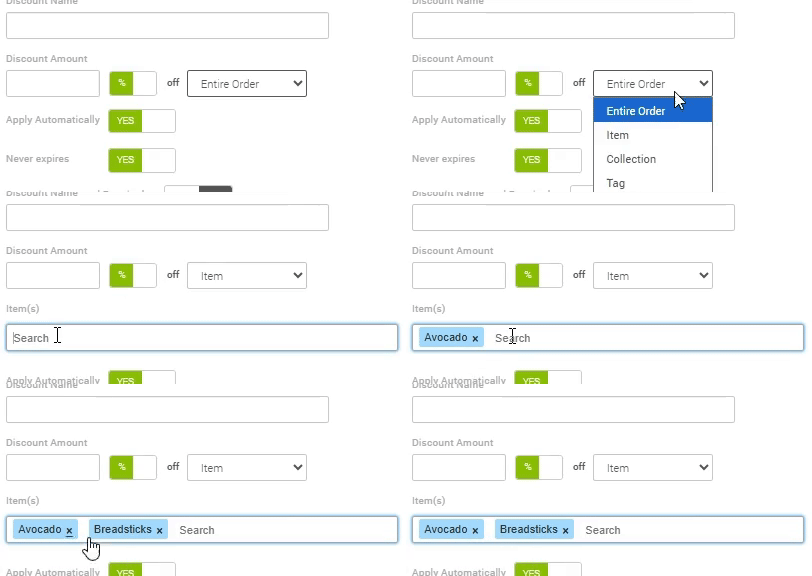
- Applies Automatically - Indicate whether the discount will be applied automatically, without approval from a supervisor: Yes or No.
- Never Expires - Indicate whether the discount is permanent: Yes or No.
- Only valid between - If No is selected in Never Expires, select the start and end dates for the discount.
- Supervisor Approval Required - Indicate whether approval from a supervisor is needed for applying the discount: Yes or No.
- Barcode - The code that applies the discount when scanned.
Note:
- The options Item(s), Collection(s) and Tag(s) are not visible if the option Entire Order is selected in Discount Amount.
- If the option Supervisor Approval Required is set to Yes, Applies Automatically will be disabled. These two options cannot be active at the same time.
- The option Only valid between is not visible if Never Expires is set to Yes
- Save
Modifying a Discount
- Click the discount name (in the leftmost column, in green).
- After the overlay window pops up, adjust information as needed.
- Save
Deleting a Discount
- Click the discount name (in the leftmost column, in green).
- After the overlay window pops up, Delete.
Updated 20 days ago