
Receipts
Customizing Customer Receipts
Customize your MX Merchant receipts with logos, messages, and business details to create a professional, branded experience for your customers across both classic and modern receipt formats.
Overview
MX Merchant allows you to customize your receipts to better represent your business by adding a logo, modifying the header message, including optional business details, and setting preferences for tips, return policies, and receipt history. These settings allow you to tailor both classic and modern receipts to enhance your customers' post-purchase experience.
Prerequisites
- You must have a Supervisor, Admin or Sub-Admin role.
Types of Receipt Settings
MX Merchant offers the following options for customizing your receipts, both classic and modern. You can learn more about each one below:
- Header Message
- Receipt Image
- Available Receipt Information
- BCC Receipt To
- Return Policy
- Displayed Elements
The way you customize these fields will be reflected both in classic and modern receipts.
At any point, you may Preview in order to see how your receipts, both classic and modern. When you're done making adjustments, Save to keep these changes.
Types of Receipts
Before looking at customization, it is necessary to understand the two types of receipts used in MX Merchant: Classic and Modern.
Classic Receipts
This is an example of the classic receipt, which is sent to customers when a Quick Pay or payment link transaction is made. On this receipt you will see the following:
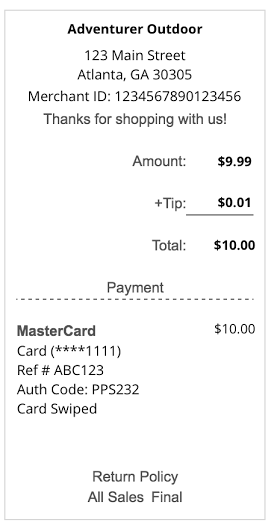
- Merchant Name - Name chosen upon completing your paperwork. (Example: Adventurer Outdoor).
- Merchant Address - Business address (including postal code) listed on your account. (Example: 123 Main Street, Atlanta, GA 30305).
- Merchant ID - Unique ID assigned to you (Example: 1234567890123456).
- Header Message - Customizable message printed on top (Example: Thanks for shopping with us!).
- Amount - The dollar amount of the transaction (Example: $9.99).
- Tips - Tips that may be added through the Express app (Example: $0.01).
- Total - The Amount plus the Tips (when applicable) (Example: $10.00).
- Payment information
- Card Type/Cash/Check - Tender type of the payment (Example: MasterCard).
- Amount Charged to Card - Amount charged to the card (Example: $10.00).
- Card Last 4 - Asterisks followed by the last four digits of the card (Example: *1111*).
- Reference # - System-generated reference number (Example: ABC123).
- Auth Code - System-generated code (Example: PPS232).
- Presentment Type - Card swiped, Card present keyed, or Card not present (Example: Card Swiped).
- Return Policy - Customizable message printed at the bottom, explaining your return policy (Example: All Sales Final).
Notes:
- The Header Message and the Return Policy may be left blank.
- Particularly in the case of split tenders, where more than one payment method is used, the Amount Charged to Card may be lower than the Total.
Modern Receipts
This is an example of the modern receipt, which is sent to customers when an invoice, recurring plan, or order is created.
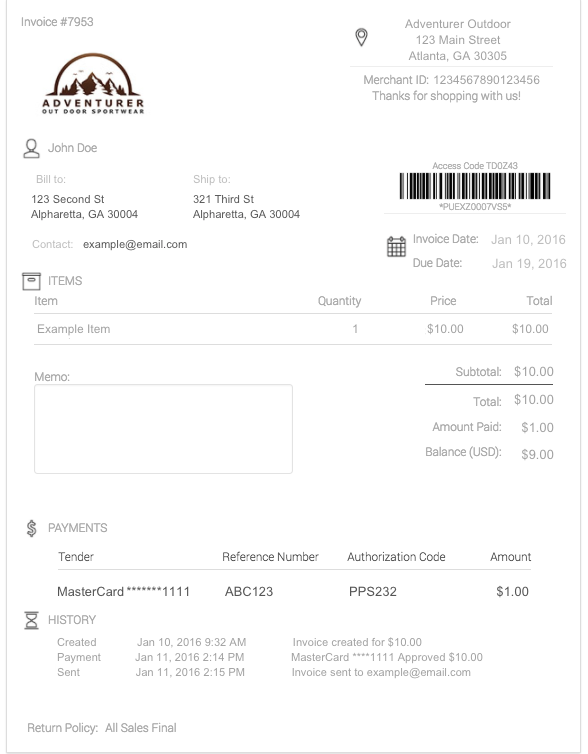
On this receipt you will see the following:
- Logo: Your company logo.
- Merchant Name: Merchant name on the account (Example: Adventure Outdoor).
- Merchant Address: Business address (including postal code) listed on your account. (Example: 123 Main Street, Atlanta, GA 30305).
- Merchant ID: Your unique ID provided to you (Example: 1234567890123456).
- Header Message: Custom message; you can choose to use this field or leave it blank (Example: Thanks for shopping with us!).
- Customer: Customer name, billing, shipping, and contact information (only shown if provided during creation).
- Invoice Date: Date the invoice was sent.
- Due Date: Date payment from customer is required by.
- Items: The item name, quantity, price, and total for each.
- Memo: Will only show if added prior to sending.
- Calculations: Subtotal, total, amount paid, balance due.
- Payments:
- Tender: Card, Cash or Check (Example: MasterCard).
- Reference #: System-generated reference number (Example: ABC123).
- Auth Code: System-generated code (Example: PPS232).
- Amount Charged to Card: How much was charged to the card, important for split tenders (Example: $1.00).
- Presentment Type: Card swiped, Card present keyed, or Card not present (Example: Card Swiped).
- History: If you choose to show the history and payment, these two sections will show.
- Return Policy: Custom message; you can choose to use this field or leave it blank (Example: All Sales Final).
Header Message
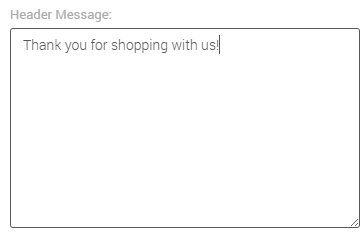
As a free-text box, you may write whatever you want here. It is a great place to add a friendly greeting or "thank you" message. This text will be displayed on the top of every receipt, so avoid adding lots of information to avoid unnecessary clutter.
Note:
If you deem this feature unnecessary, this field may be left blank.
Receipt Image
Customize your receipt and add a picture of your logo to the top of the modern receipts that you send.
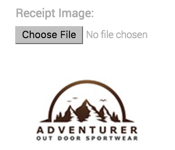
To add a new receipt image:
- Click Choose File.
- You'll see a pop-up window of a local file explorer. From here, you'll be able to select an image store in your device.
- Select the logo image, and click Open in the pop-up window.
- The file will be loaded and you'll see the preview just below the Choose File button. To change the photo, just click Choose File again and select a new image.
Available Receipt Information
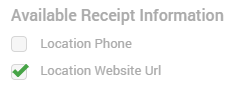
You may check the following boxes in order to show each piece of information on the receipt. Any unchecked boxes won't be shown:
- Location Phone - Phone number registered for the merchant.
- Location Website URL - Website URL registered for the merchant.
BCC Receipt To
In this field, you may enter one email addresses to which a copy of the receipt will be sent. This email address will never be visible to the customer.
Return Policy
As a free-text box, you may write whatever you want here. It is the place to briefly explain your return policy. Unless your business handles different items with vastly different return policies, it is recommended to write a very brief explanation.
Note:
While it is always a good idea to explain your return policy on receipts, for the sake of transparency towards customers, this field may be left blank if don't deem it necessary.
Displayed Elements
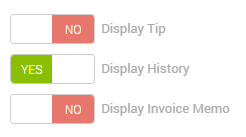
You may select Yes or No for the following items: Choose Yes to show them on the receipt, and No to hide them:
- Display Tip - The tip amount, shown separately.
- Display History - The details of the transaction, including creation, payment, and receipt sending.
- Display Invoice Memo - Message or note from merchant to customer.
Updated 20 days ago