
MX™ Invoice App
Overview
Sending invoices and receiving payments have never been easier. The option to accept credit card payments on a sent invoice makes collecting funds fast and hassle-free. Your customer is e-mailed a link to view their invoice and given the option to pay with their credit card. The payment is then automatically collected and your customer receives an e-mailed receipt at the time of payment.
Prerequisites
[anything here, Preston?]
Activating and Deactivating MX™ Invoice
Activation
Invoice sending is not a default option on MX Merchant. For this reason, it must be enabled my activating MX Invoice. To do so:
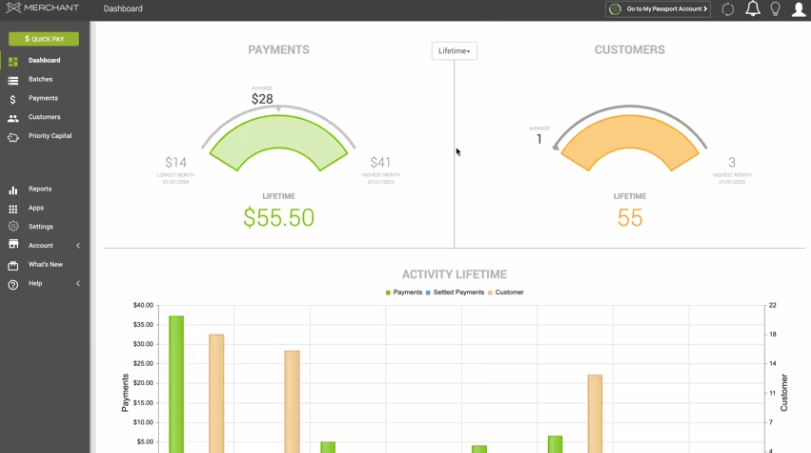
- Go to Apps on your left navigation.
- Look for the *MX Invoice window, and click on the Activate button below it.
- When prompted, confirm that you want to activate MX Invoice.
Note:
If you activate MX Invoice, you will be charged a monthly fee. Consider this and whether it is needed for your business. You can deactivate it at any time.
- After confirming the activation, you'll see that the Invoices option will show up on the left navigation menu.
Deactivation
If, at any time, you see that this option no longer suits your business, you may deactivate it. To do so:
- Go to Apps on your left navigation.
- Look for the *MX Invoice window, and click on the Deactivate button below it.
- When prompted, confirm that you want to deactivate MX Invoice.
- After confirming the deactivation, you'll see that the Invoices option will no longer be visible on the left navigation menu.
Using MX™ Invoice
Viewing Invoices
Upon clicking on the Invoices tab on MX Merchant's left navigation, you'll see a table with your invoices, showing the following information:
- Invoice # – Unique identifier automatically assigned to the invoice.
- Customer – Name of the customer or business the invoice is billed to.
- Total – Full amount due on the invoice, including taxes and discounts.
- Status – Current state of the invoice.
- Invoice Date – The date the invoice was created or issued.
- Due Date – The date the customer is expected to complete payment.
- Terms – Payment terms that define when payment is due.
[ask Preston for screenshot]
Adding Invoices
Whenever you create a new invoice with a customer, you may enter into MX Merchant. To do so:
- In the Invoices window, click +Add Invoice.
- Fill in the following information:
- Customer - Person or business signing the invoice.
- Add New Customer - Add the type of customer (person or business), name, email address and phone number
- Select Existing Customer - If the customer is already in your database (see Customers), you may just look it up and select it.
- Billing - Dates for billing:
- Invoice Date – The date the invoice was created or issued.
- Due Date – The date the customer is expected to complete payment:
- Pay Online - Select whether online payments will be accepted: Yes or No.
- Accepted payment methods - This section only contains the option Credit Card, which can be checked or unchecked.
Note:
If credit card is unchecked, pay online changes to no automatically, meaning that cash payments would be mandatory.
- Items - Features of the product or service acquired through the invoice. If there are several items, you may iterate as needed.
- Product – The item or service being billed.
- Description – Additional details about the product or service.
- Quantity – The number of units being purchased.
- Unit Price – The cost of a single unit of the product or service.
- Units Discount – A discount applied per unit, if applicable.
- Item Total – The total cost for the line item.
- Tax - Select a tax category that will be applied to the item (learn more in Sales Tax.
- Discount - Select a tax category that will be applied to the item (learn more in Discounts.
- Memo – Optional internal notes or comments added to the invoice.
- Attachments – Files added to support the invoice, such as contracts, photos, or receipts.
Note:
- Units Discount and Item Total are updated automatically.
- Tax and Discount are only displayed by clicking on the arrow to the left of Product.
- Tax and Discount must be selected individually for each product.
- Save and Send
[Preston: What does ADD PAYMENT do?]
Additional Resources
Videos
- MX Invoice - Activation: Instruction Video
Updated 20 days ago