
Compliance
Understanding Your Compliance Requirements: PCI, Scan Status & TIN
Learn how to view and manage your PCI compliance and TIN validation settings in MX Merchant to keep your business secure and compliant.
Overview
Compliance with PCI digital security standards and TIN validation are a vital part of fraud prevention in our financial system. MX Merchant offers a few options to make sure your business is compliant and good to go.
Prerequisites
- You must have a Supervisor, Admin or Sub-Admin role.
Viewing Your Compliance Settings
To view your compliance settings:
- Click Settings on MX™ Merchant's left-side menu.
- Click Compliance in the Settings menu. You'll find the two following tiles. You can learn more about each one below:
PCI Data Security Standard (PCI-DSS)
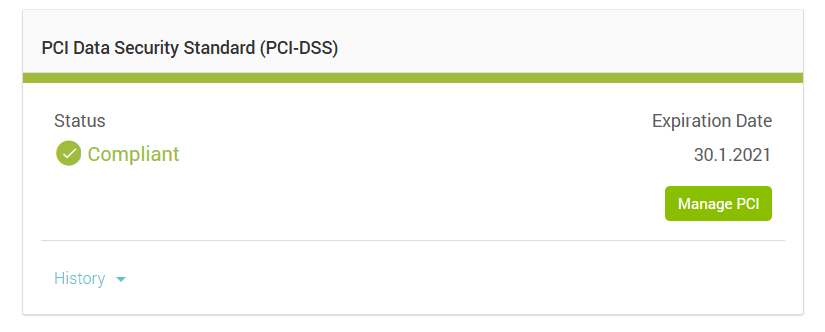
The PCI tile shows you your current PCI status, the expiration date, and the green button that will say either Activate ControlScan App or Manage PCI, depending on whether or not you have the ControlScan app installed.
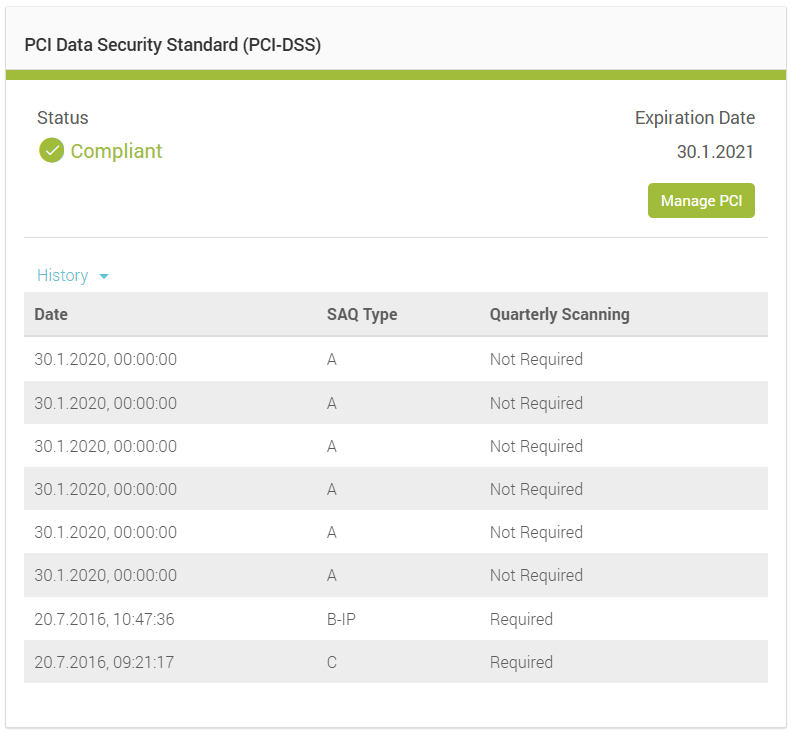
By clicking on the blue History button, you'll see the following information about previous SAQ (Self-Assessment Questionnaire) completions:
- Date - The date and time stamp of the SAQ completion.
- SAQ Type - The SAQ type that was completed. There are multiple types of SAQ forms and each merchant may qualify for different types.
- Quarterly Scanning - Indicates whether a quarterly scan was required or not at the time of scanning.
Taxpayer Identification
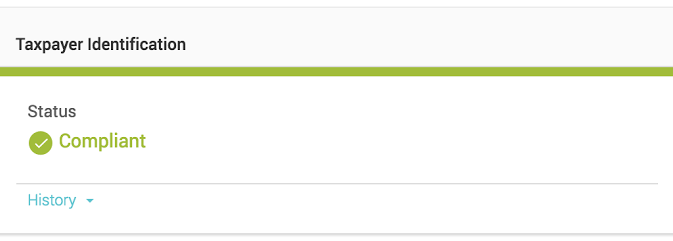
This tile gives you a quick indicator as to whether or not the TIN provided upon completing your application was approved or not.
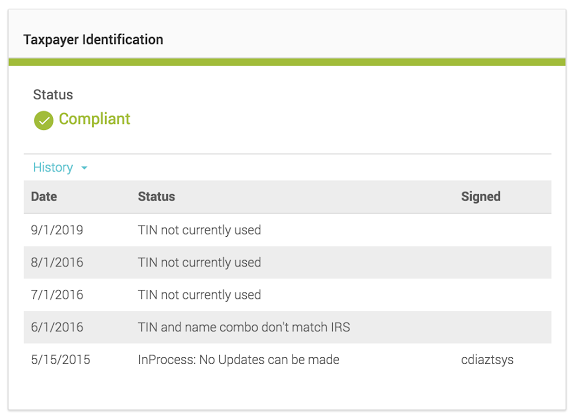
By clicking on the blue History button, you'll see the following information as to changes to your TIN on file:
- Date - The date the new TIN was updated
- Status - Status of the TIN that was on file at that time and the response received during our check.
- Signed - The individual that signed as approval when the new TIN was provided.
Updated 20 days ago