
Notification Feed
Manage Your Business Notifications
Introduction
Keeping track of your account activity is easy with the MX™ Merchant notification feed. This guide will walk you through how to access and interact with your notifications, from viewing basic details to exploring advanced information. You'll also discover how to generate your own notifications, ensuring you stay informed about important events.
What You'll See
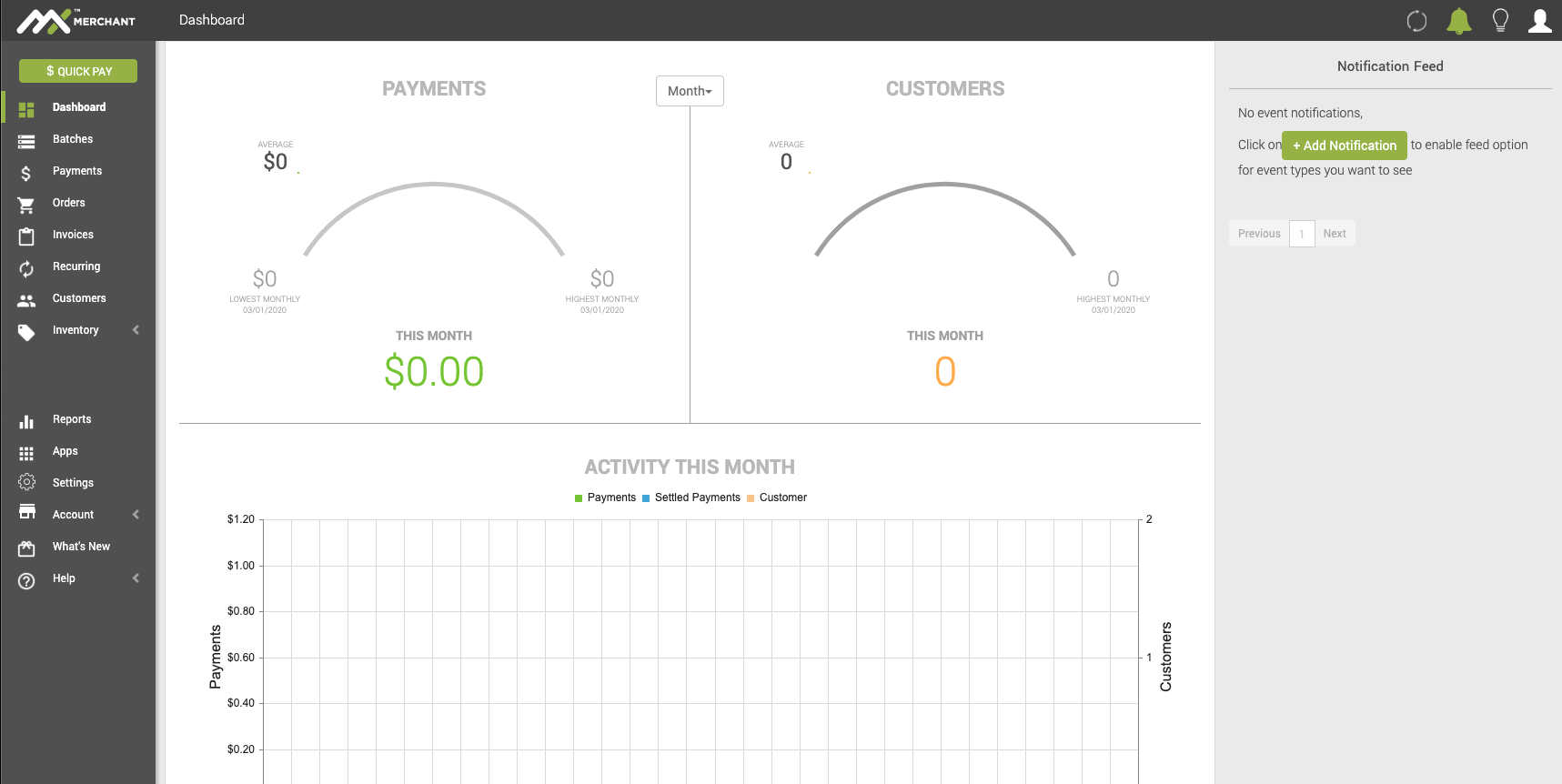
Once logged into the MX™ Merchant dashboard, you may click the bell icon (upper right-hand corner) to see all of the notifications generated. This view shows limited information about each notification.
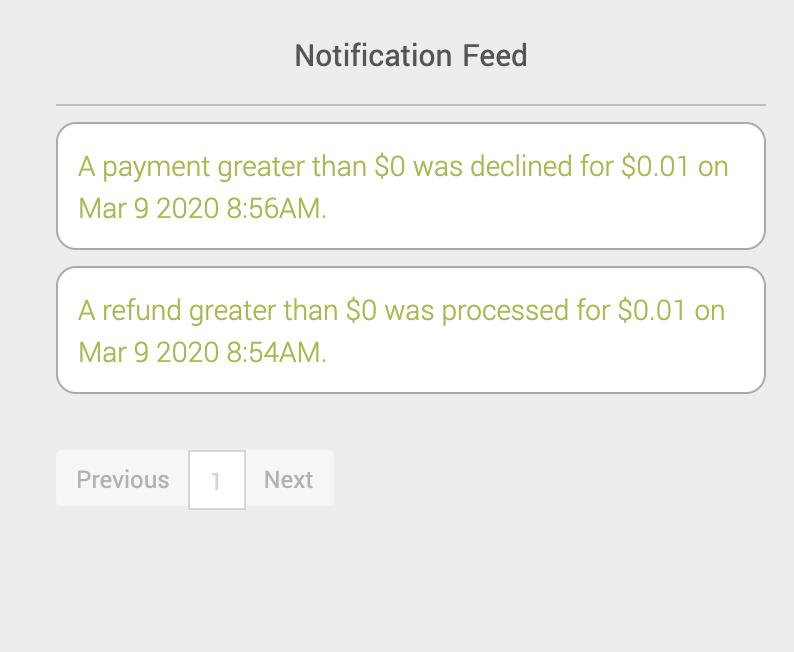
To see more information about a specific notification, click on it. Here is an example of a notification that a refund was processed.
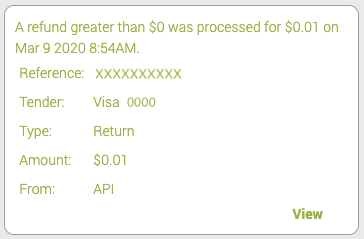
You can click View (on the bottom right) to bring up a window with the most detailed information about the notification. In this case, it shows the details of a successful refund. From here there is an option to show advanced details.
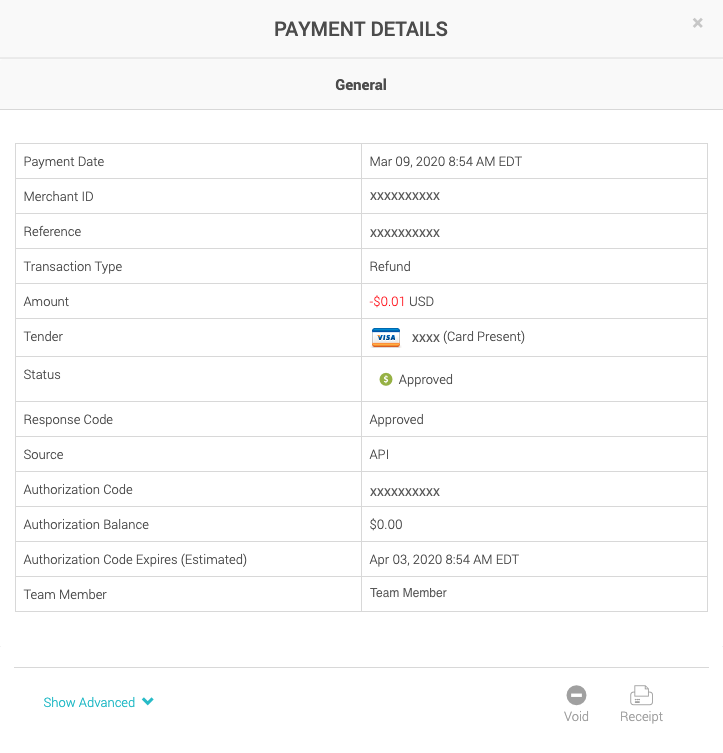
(Can we get a screenshot of the "Advanced" data?)
Additional Information
- Creating a Notification: For documentation to create notifications that will show up in your notification feed, see our Notifications page here.
Updated 20 days ago