
Payments
Manage and View Your Payments
Overview
This guide explains how to view, search, filter, and export payments within MX™ Merchant, as well as how to access detailed transaction information. It walks users through the Payments page—where all transactions are listed chronologically—and describes each field displayed, including reference numbers, payment type, amount, status, and customer details. The document also outlines how to interpret payment status icons, apply advanced filters, and export reports for record-keeping. Additionally, it covers how to open individual payment records to view standard details, advanced fields such as batch or tax information, and Level 3 data like freight and duty amounts. Overall, it provides a complete overview of how to manage and review payment activity efficiently in MX™ Merchant.
Viewing Payments
Upon clicking Payments on the left-menu, you'll see a list of all your payments in chronological order (from newest to oldest).
Each payment displays the following information:
- Reference – System generated.
- Transaction Type – Sale, refund, or authorization.
- Tender – Card type icon with last four digits, cash, check, or ACH.
- Amount – Total for that transaction.
- Tax – The amount of tax applied to the transaction.
- Tip – Any gratuity amount added to the transaction.
- Status – Approved, voided, or declined.
- Authorization Code – Online or offline authorization.
- Invoice – If you entered a number in the invoice field section of Quick Pay it will show here; if you made a payment on an invoice, the invoice number will show here; or if you have the B2B app enabled, an invoice number will be system generated for you.
- Customer – If the payment was associated with a customer in Quick Pay, or if you made a payment on an invoice/contract/order that was associated with a customer, it will show here.
- Source – Shows how the payment was made through MX™ Merchant. The sources can be: Quick Pay, Link2Pay (and the name of the link), Invoice, Recurring, Order, MX™ Express (iPhone/iPad app), MX™ Retail (iPad app), or API.
- Memo – Additional notes or comments entered during the transaction.
- Date/Time – Date and time stamp of when the transaction was run.
- Cash Discount – Indicates any discount applied for payments made in cash, typically to offset processing fees.
Payment Statuses
Payment statuses are marked by the following icons:
 An authorized but not settled payment. This payment can be voided.
 An authorized payment that has been partially settled. (Hovering over the icon will display the authorization balance remaining).
 A settled payment. This payment can be refunded.
 A voided payment. No further action is available for this payment.
 A declined payment. The payment was not completed due to invalid information.
Searching, Filtering and Exporting
MX Merchant offers several options for filtering payments.
-
To locate a specific payment, type the reference number, authorization code, invoice number, or customer name you are looking for and press Enter.
-
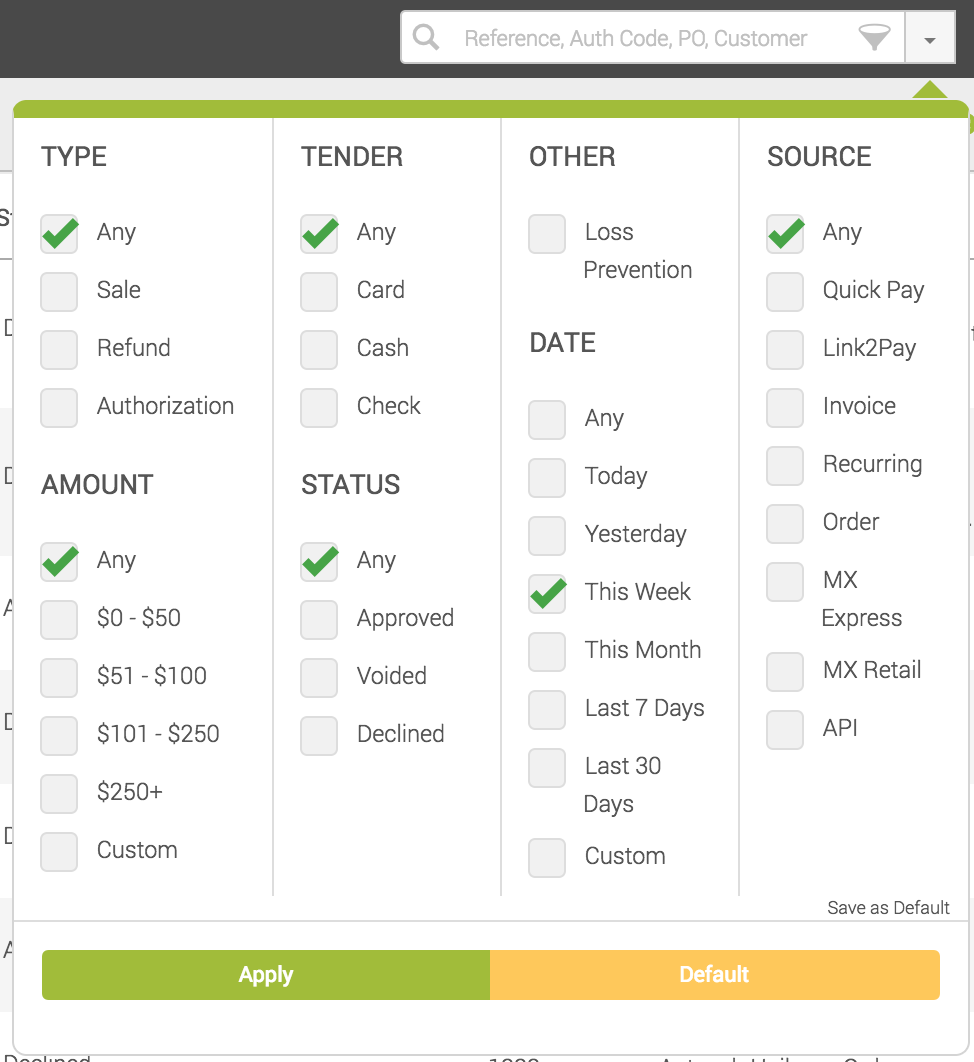
To access the filter:
- Click on the the down arrow (▼) to the right of the search box.
- Select the criteria you want to filter by.
- Click Apply. Please note, these filters will only be applied if you click the green Apply button at the bottom of the display, clicking outside the box will cancel your changes.
- If you later need to reset your search criteria, click Default on the bottom right, and click Apply.
- Otherwise, if you need to set your own criteria as the default, check the boxes you would like to filter by, then click Save as Default on the lower right.
-
To Export the payments currently on display, click the Export button
 on the top right. This will export the current search and filter you have set into an Excel spreadsheet.
Payment Detail
To view more information about a specific payment, click on the green text under the reference column.
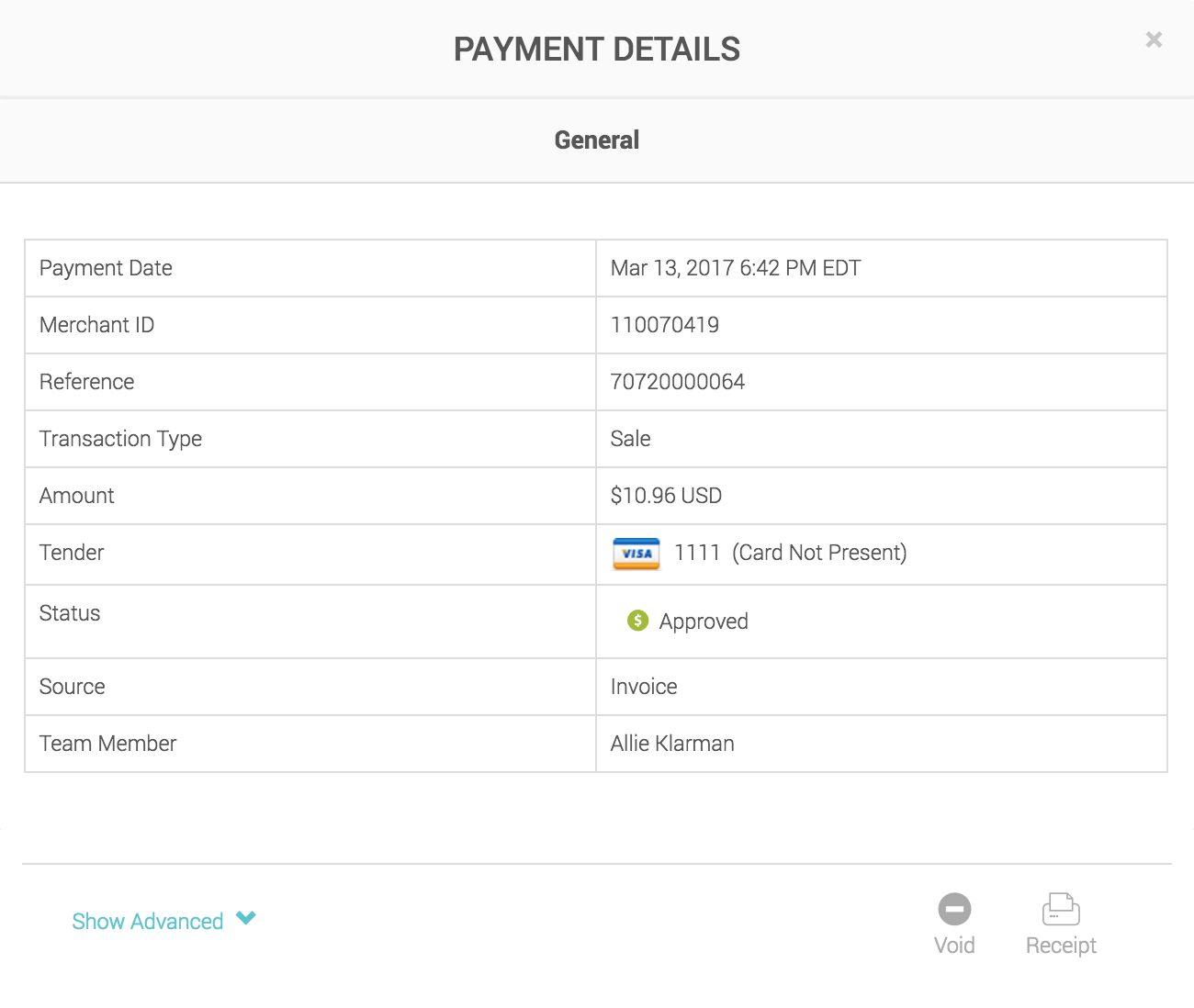
Now you will see the pop-up above with the following fields:
- Payment Date – Date and timestamp of the transaction.
- Merchant ID – System-generated ID for your account.
- Reference – System-generated ID for the payment.
- Transaction Type – Sale, refund, or authorization.
- Amount – Total of the transaction.
- Tender – Card type icon with last four digits, cash, check, or ACH.
- Status – Approved, voided, or declined.
- Response Code – Unique code for the authorization.
- Source – How the payment was made through MX™ Merchant.
- Team Member – The name of the user who completed the transaction.
Note:
Details displayed and payment actions available vary based on the type and status of the payment. These actions include:
- Void or Refund - Depending on if the batch is settled or not
- Add Sale - If funds were originally authorized on card and need to settle funds
Show Advanced
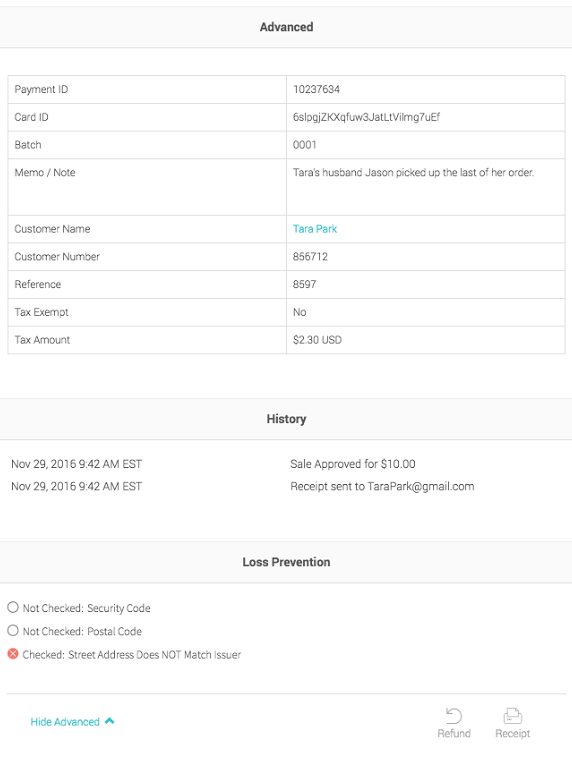
Furthermore, by clicking on the blue Show Advanced option, additional information will pop-up. This information includes the following:
- Payment ID – System generated.
- Card ID – System-generated token.
- Batch – Batch number that this transaction is associated with.
- Memo / Note – Optional free-form notes that can be entered at the time of payment.
- Customer Name – If the payment was associated with a customer in Quick Pay, or if you made a payment on an invoice/contract/order that was associated with a customer, it will show here. It is also a hyperlink to view the customer’s full record.
- Customer Number – Optional field that can be entered at the time of payment or automatically inserted if associated with a customer record.
- Reference – System generated.
- Tax Exempt – Yes or no, depending on the selection in Quick Pay or the customer profile.
- Tax Amount – How much of the transaction total was tax. If nothing is entered on the payment, the system will automatically apply 7% for reporting purposes to help qualify for a better rate.
- Cash Discount – Indicates any discount applied for payments made in cash, typically to offset processing fees.
- History - the history section is a full list of events associated with this payment as well as the date and time stamp of when they took place. Examples: sale approval, refunds, receipts, sale complete, etc.
Payment-level L3 Data
Lastly, by clicking on the blue Payment-level L3 Data option, some information, which is not often required, will pop-up. This information includes the following:
- Freight Amount – The shipping or delivery charge applied to the transaction.
- Duty Amount – The customs or import duty fee applicable for international shipments.
- Destination Country – The country where the goods or services are being delivered.
- Destination ZIP – The postal or ZIP code of the delivery destination.
- Additional Tax (Amount/Freight) – Any extra tax applied to the freight or total transaction amount beyond standard sales tax.
- Additional Tax Rate % – The percentage rate used to calculate the additional tax on the transaction or freight.
- Source ZIP – The postal or ZIP code from which the goods or services are shipped or originated.
Updated 20 days ago