
Loss Prevention
Managing Fraud and Loss Prevention Settings
Overview
MX™ Merchant's loss prevention settings help safeguard transactions by requiring additional security details for swiped, manually entered, and check payments. These measures reduce fraud risk, prevent interchange downgrades, and enable automatic declines.
Prerequisites
- You must have an Admin, Sub-Admin or Supervisor role.
Types of Loss Prevention Settings
MX Merchant offers several options for managing loss prevention features for these kinds of transactions:
- Swipe Transactions
- Manual Transactions (i.e. keyed transactions)
- Check Transactions
Regardless of the type of transaction, you will also have access to the Auto Decline feature for added security.
Remember that, whenever you finish editing any of the features below, you must click Save. Otherwise, any changes made will be lost.

Swipe Transactions
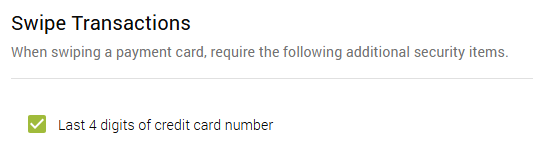
In transactions where a card is swiped, you can activate the following security feature in MX™ Merchant:
- Last 4 digits of the credit card number: If this option is checked, MX Merchant will prompt the merchant to enter the last four digits of the credit card
Manual Transactions
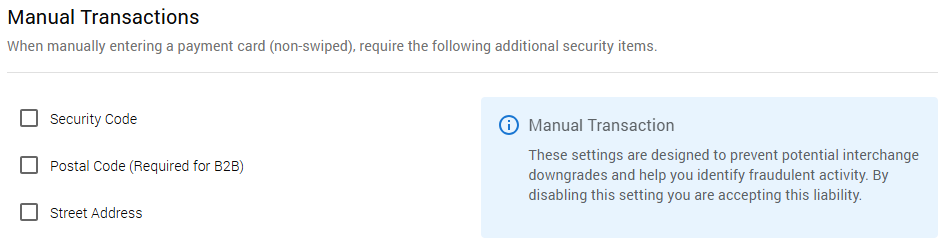
In transactions where a card information is keyed manually, you can activate the following security features in MX™ Merchant, in any combination that suits your needs best:
-
Security Code: If checked, it will require you to enter the security code on the back of the card.
-
Postal Code (Required for B2B): If checked, it will require you to enter the postal code associated with the card.
-
Street Address: If checked, it will require you to enter the number of the street address associated with the card.
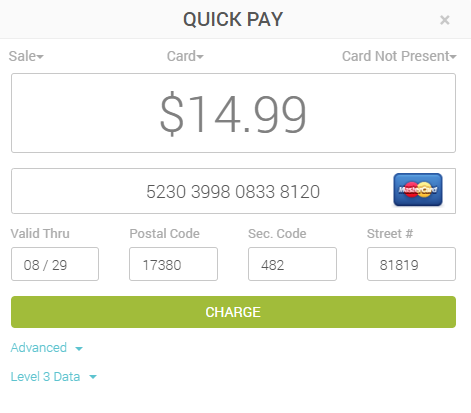
If any of these options is unchecked, that option will not appear, thus that information will not be required. Here is an example from a Quick Pay payment, where all three options are checked:
Note:
As mentioned above, the Postal Code will always be required in business-to-business (B2B) transactions.
Check Transactions
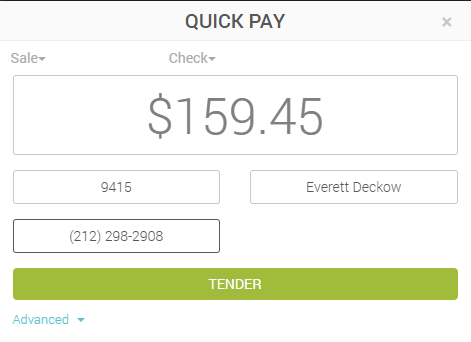
In transactions where a check is entered, you can activate the following security features in MX™ Merchant, in any combination that suits your needs best:
-
Phone Number: If checked, it will require you to enter the customer's phone number.
-
Check Number: If checked, it will require you to enter the check number printed on the check (not including the routing and account numbers).
If any of these options is unchecked, that option will not appear, thus that information will not be required. Here is an example from a Quick Pay payment, where both options are checked:
Auto Decline
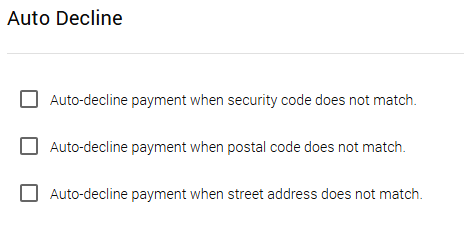
These auto decline options are based on the manual transactions seen above. By checking them, you will be notified when a transaction is declined due to these pieces of data not matching the record.
Note:
If any of these options is disabled, a mismatch involving that piece of data would not trigger a decline, which could open up your business for fraudulent activity. As a best practice, the options checked in this section should match the ones checked in the Manual transactions section.
Updated 20 days ago